Group Tool Debug & Publish
Group Tool Debugging
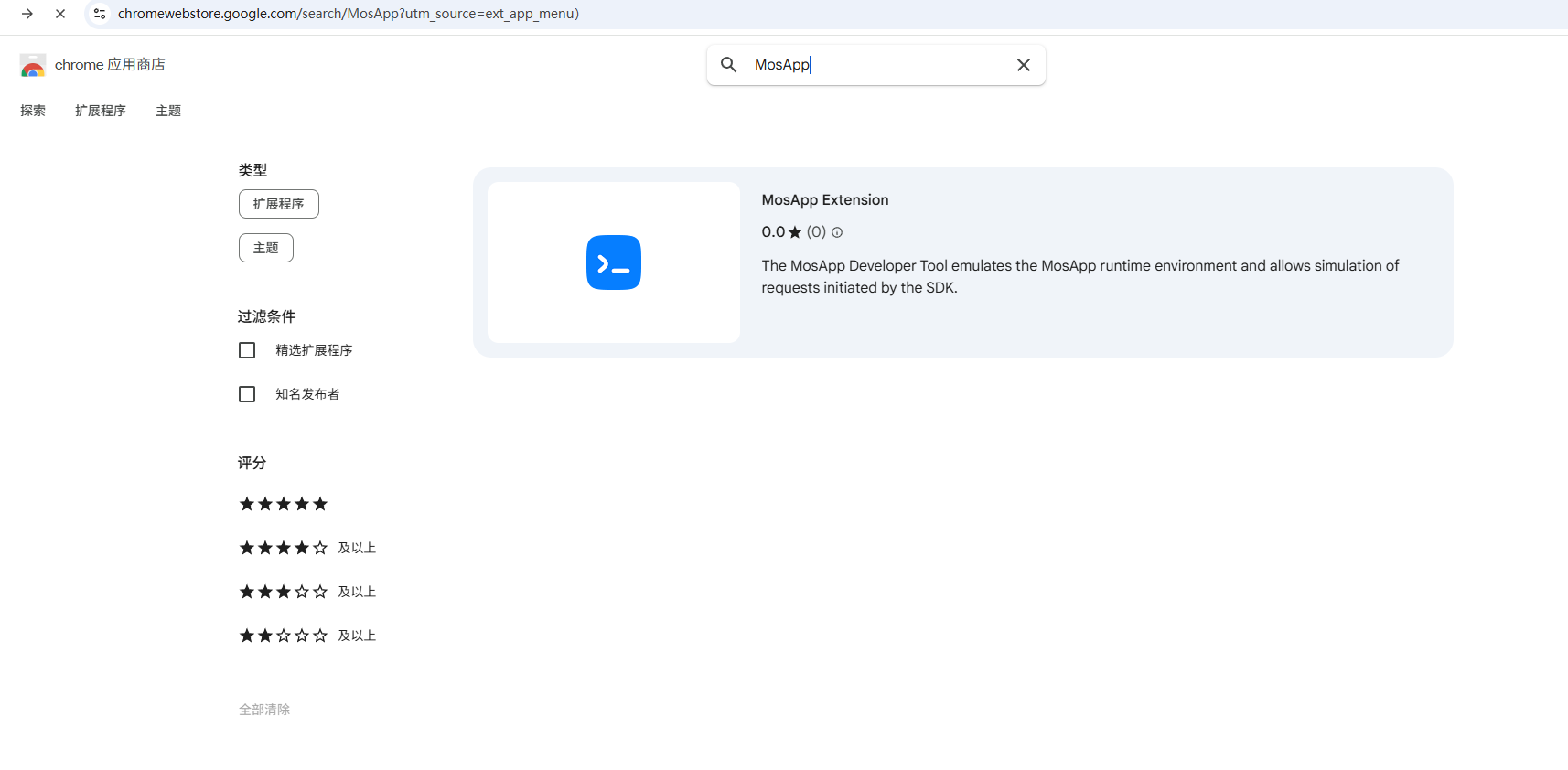
- Search for MosApp in the Google Chrome Web Store to install the mini-app debugging plugin (https://chromewebstore.google.com/search/MosApp?utm_source=ext_app_menu)
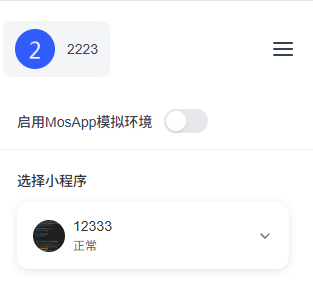
Scan the QR code to log in to the developer tools

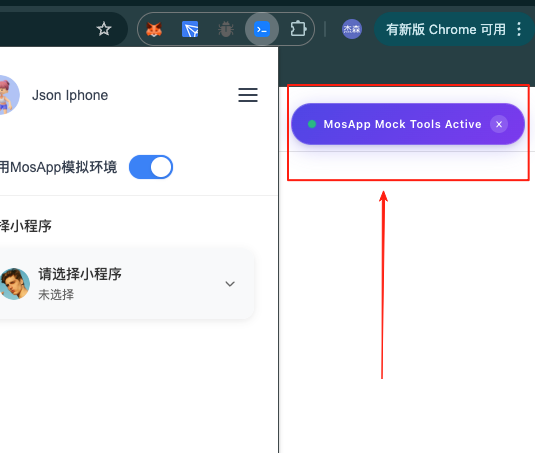
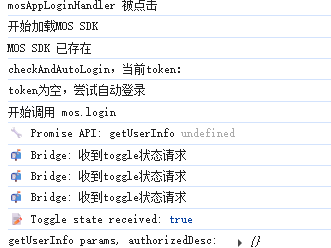
Enable the MosApp simulation environment, and the console displays "mock api injected successfully"
Call the API interfaces of mos.js, such as mos.login, etc. The debugging tool will return corresponding data
Publish the Group Tool
- Log in to the developer backend, which can be accessed via the official website entry (https://mosapp.app) or directly by visiting the developer backend page (https://mp-console.mos.me/#/home)
- After entering the developer backend, open the "Management - Version Management" menu page, where you can upload the development version.
- The development version should be a zip compressed package of the frontend project compiled (root directory name must be dist), which should be the same as the content deployed to the server.

- The entry file index.html of the packaged frontend code must be in the dist directory.

- The development version should be a zip compressed package of the frontend project compiled (root directory name must be dist), which should be the same as the content deployed to the server.
- The uploaded version can be set as an experience version, and developers can use MosApp to scan the QR code of the experience version for testing.
- After confirming that the version is correct, you can submit it for review. The Mos operation staff will complete the group tool review as soon as possible upon receiving the review record.
- After passing the review, you can submit it for release to the online environment.
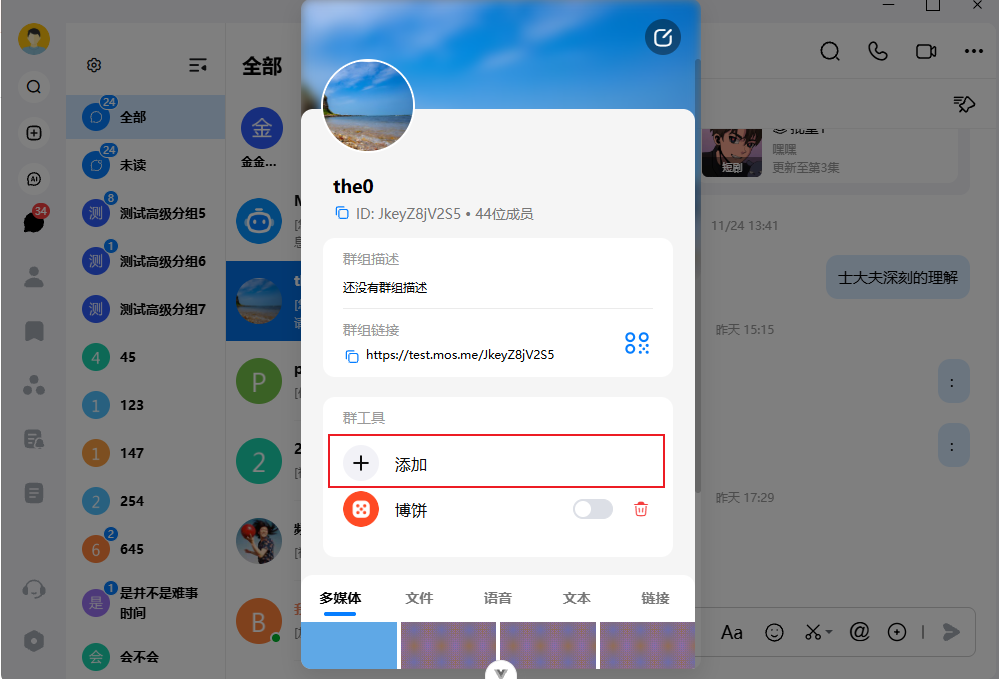
- After successful release, users can add the group tool via Group Tools in the group chat details.